> For the complete documentation index, see [llms.txt](https://docs.rhqnetwork.biz/llms.txt). Markdown versions of documentation pages are available by appending `.md` to page URLs; this page is available as [Markdown](https://docs.rhqnetwork.biz/rhq-docs-en/game-hosting/fxserver-windows.md).

# FXServer on Windows

Install and start a FiveM FXServer on Windows with the Cfx.re recipe deployer.

This guide installs a FiveM server (FXServer) on a Windows VPS or dedicated server.

{% hint style="warning" %}
You need a **Cfx.re account** to link and run the server.
{% endhint %}

{% stepper %}
{% step %}

### Check the files

Make sure all the necessary files are present in the extracted directory to avoid startup errors. When the files are correctly downloaded and in place, continue with starting the server.

<figure><img src="https://8944023-files.gitbook.io/~/files/v0/b/gitbook-x-prod.appspot.com/o/spaces%2FRDKwrAc1dnLDX9WkgKnR%2Fuploads%2Fgit-blob-c317ea4a7f3ecbdc180d5ad5e3fe8b32f7a99c9d%2Frdp-04-confirm.png?alt=media" alt="" width="520"><figcaption></figcaption></figure>
{% endstep %}

{% step %}

### Start the server

Double-click `FXServer.exe`, or launch it from CMD/Terminal.

<div align="left"><figure><img src="https://8944023-files.gitbook.io/~/files/v0/b/gitbook-x-prod.appspot.com/o/spaces%2FRDKwrAc1dnLDX9WkgKnR%2Fuploads%2Fgit-blob-5b7f2d45485ae14e594e598e305190741c46b1ac%2Ffx-01-launch.png?alt=media" alt="" width="470"><figcaption></figcaption></figure></div>
{% endstep %}

{% step %}

### Link your account with the PIN

A page should open in your browser. Make sure the PIN is filled in and click **Link Account**.

<div align="left"><figure><img src="https://8944023-files.gitbook.io/~/files/v0/b/gitbook-x-prod.appspot.com/o/spaces%2FRDKwrAc1dnLDX9WkgKnR%2Fuploads%2Fgit-blob-1e3a2715c82e0c961b9fd48c4b6f41f7404dc2f4%2Ffx-02-pin.png?alt=media" alt="" width="437"><figcaption><p>You can find the code in the console that opened together with the .exe</p></figcaption></figure></div>
{% endstep %}

{% step %}

### Log in to Cfx.re

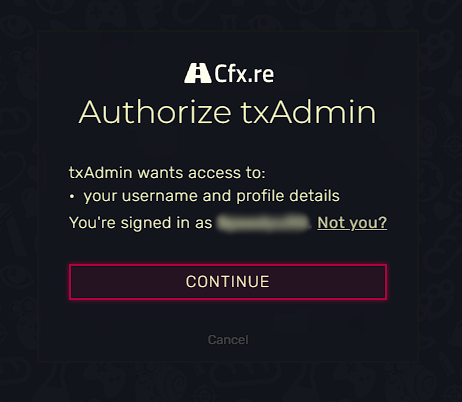
Log in to your Cfx.re account in this tab, then click **Continue**.

<div align="left"><figure><img src="https://8944023-files.gitbook.io/~/files/v0/b/gitbook-x-prod.appspot.com/o/spaces%2FRDKwrAc1dnLDX9WkgKnR%2Fuploads%2Fgit-blob-5be52daa1a4201853bce59743ba18d6e43ad3472%2Ffx-03-login.png?alt=media" alt=""><figcaption></figcaption></figure></div>
{% endstep %}

{% step %}

### Set a password and accept the terms

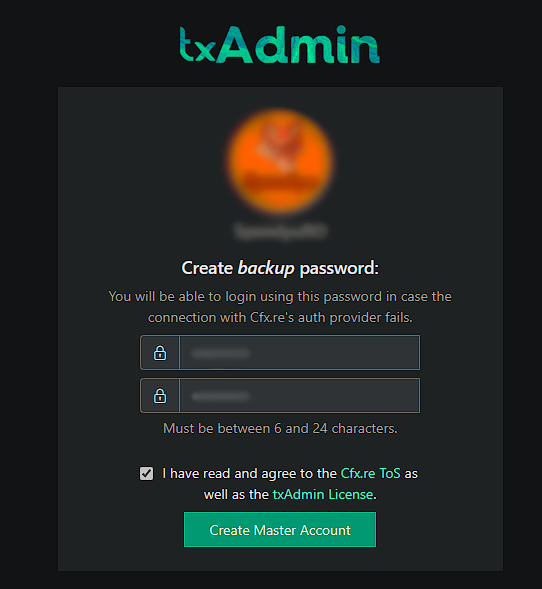
1. Set a password to access your server's administration page.
2. Accept the terms and conditions.

<div align="left"><figure><img src="https://8944023-files.gitbook.io/~/files/v0/b/gitbook-x-prod.appspot.com/o/spaces%2FRDKwrAc1dnLDX9WkgKnR%2Fuploads%2Fgit-blob-45da168d73f7d03c20a9efdc7aea925a730cd768%2Ffx-04-password-terms.png?alt=media" alt="" width="407"><figcaption></figcaption></figure></div>
{% endstep %}

{% step %}

### Name your server

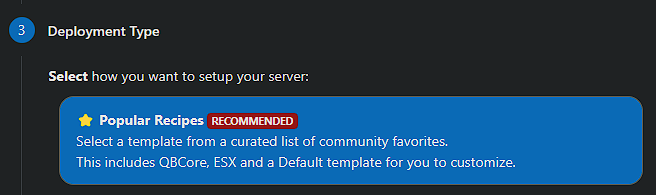
Enter a name for your server and click **Next**, then select **Popular Recipes**.

<div align="left"><figure><img src="https://8944023-files.gitbook.io/~/files/v0/b/gitbook-x-prod.appspot.com/o/spaces%2FRDKwrAc1dnLDX9WkgKnR%2Fuploads%2Fgit-blob-8c8a15aa8e9dfb34326c3cef7aafb4b8828561c3%2Ffx-05-server-name.png?alt=media" alt="" width="492"><figcaption></figcaption></figure></div>
{% endstep %}

{% step %}

### Choose a template

Choose the **CFX Default** template for now. Other templates exist, but some of them need a database server (XAMPP or [MariaDB](/rhq-docs-en/vps-and-dedicated/windows/mariadb-heidisql.md)).

<div align="left"><figure><img src="https://8944023-files.gitbook.io/~/files/v0/b/gitbook-x-prod.appspot.com/o/spaces%2FRDKwrAc1dnLDX9WkgKnR%2Fuploads%2Fgit-blob-c06b6ecfc5db40c4a1f2c01b237c6d166c5ea3df%2Ffx-06-template.png?alt=media" alt=""><figcaption></figcaption></figure></div>
{% endstep %}

{% step %}

### Save and open the Recipe Deployer

Click **Save** (or choose a different path for the data), then go to **Recipe Deployer**.

<div align="left"><figure><img src="https://8944023-files.gitbook.io/~/files/v0/b/gitbook-x-prod.appspot.com/o/spaces%2FRDKwrAc1dnLDX9WkgKnR%2Fuploads%2Fgit-blob-620349361666b266c305ff52b032ab78ccc9aba1%2Ffx-07-save.png?alt=media" alt=""><figcaption><p>The text in blue may differ, depending on the path you selected.</p></figcaption></figure></div>
{% endstep %}

{% step %}

### Deploy the recipe

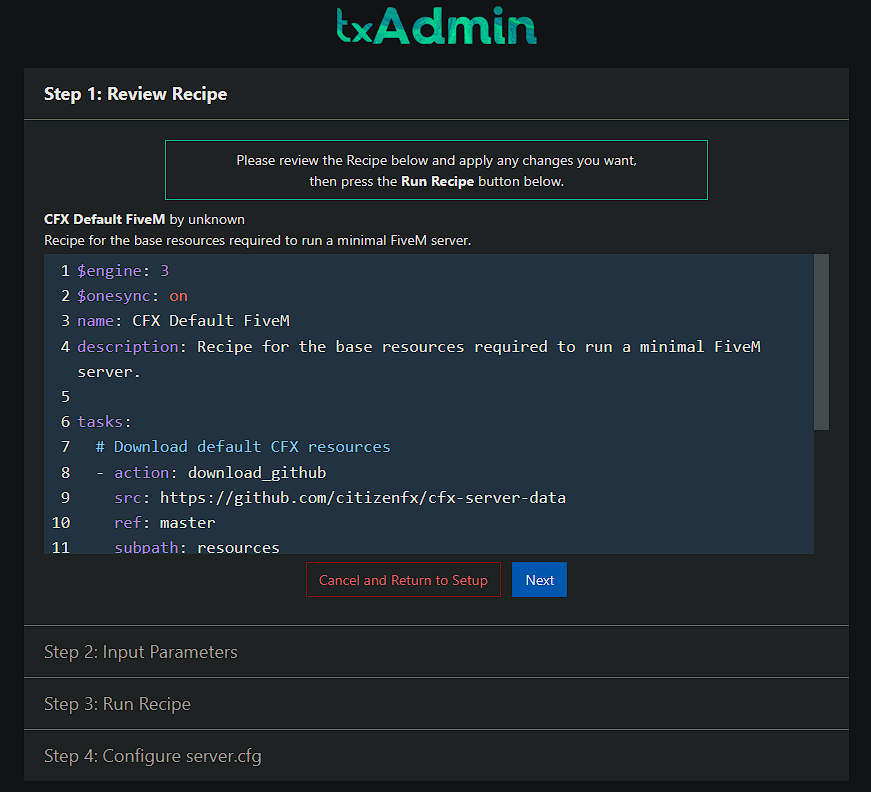
Click **Next** after checking that the recipe looks good. It should be fine as it comes.

<figure><img src="https://8944023-files.gitbook.io/~/files/v0/b/gitbook-x-prod.appspot.com/o/spaces%2FRDKwrAc1dnLDX9WkgKnR%2Fuploads%2Fgit-blob-e166539f80a2287fb65c19ecda87e11f794621ba%2Ffx-08-recipe.png?alt=media" alt=""><figcaption></figcaption></figure>
{% endstep %}
{% endstepper %}

{% hint style="info" %}
Remember to open port `30120` (TCP and UDP). See [Open ports on Windows](/rhq-docs-en/vps-and-dedicated/windows/windows-ports.md).
{% endhint %}